> ## Documentation Index
> Fetch the complete documentation index at: https://docs.userpilot.com/llms.txt
> Use this file to discover all available pages before exploring further.
# Microsoft Teams Integration
> Connect Microsoft Teams to Userpilot to get signals in your channels, and survey responses, system notifications, and digests as direct messages.
## Overview
Userpilot's Microsoft Teams integration helps your team stay informed about
product activity without leaving Teams. Receive system notifications and
digests, share insights from signals, and act on feedback faster.
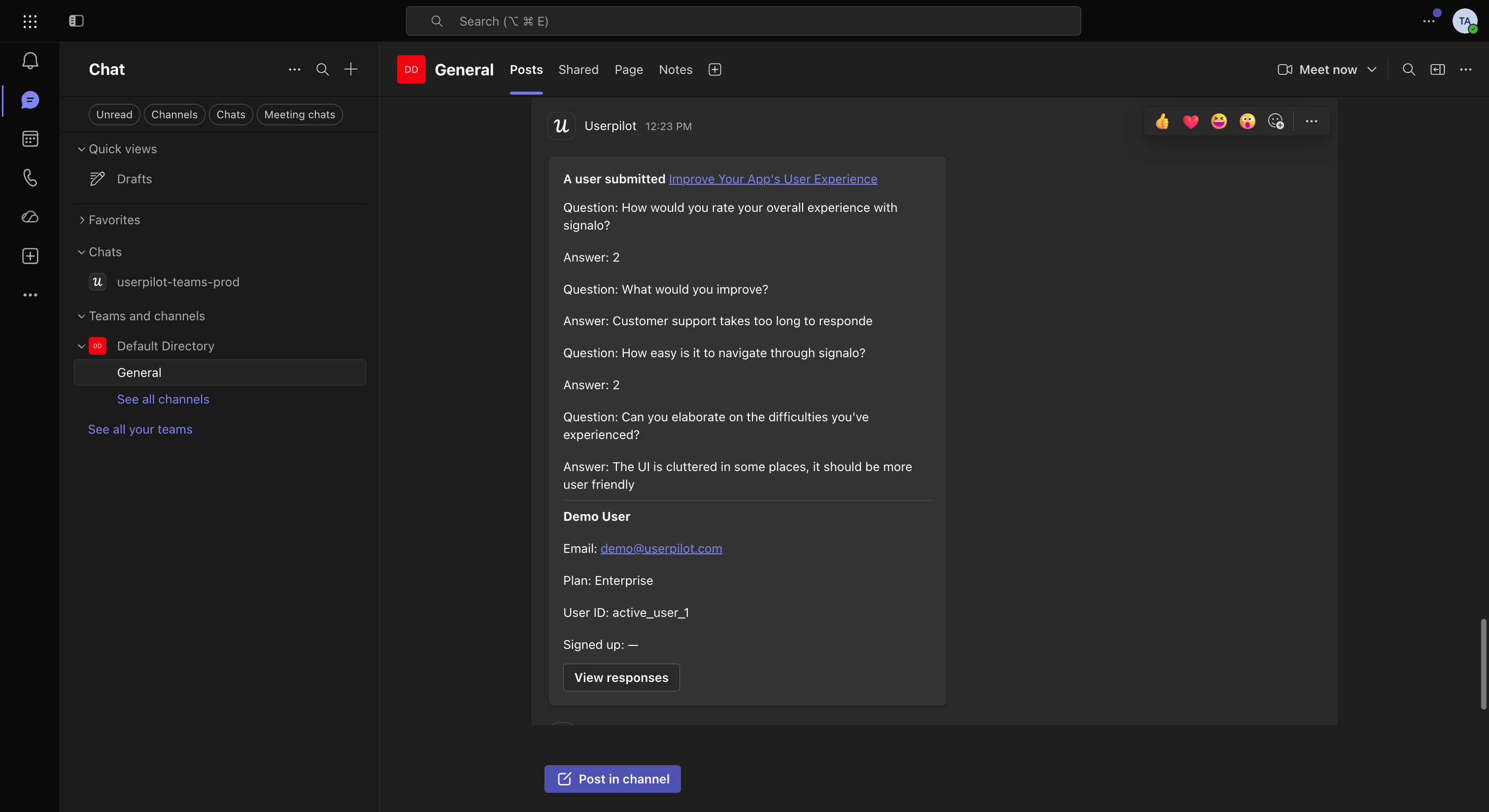 ### Use cases
Here's what you can do with the Microsoft Teams integration:
#### 1. Stay informed
Get notifications in Teams channels or as direct messages when:
* Users complete flows, checklists, or surveys.
* NPS responses or feedback are submitted.
* Users engage with in-app experiences or visit key pages.
#### 2. Collaborate effortlessly
Keep everyone aligned by:
* Receiving notifications when teammates share reports, dashboards, sessions, or
publish new content.
* Allowing Product, Success, Support, and Marketing teams to act on insights
immediately.
#### 3. Monitor product health
* Get notified when issues occur in your in-app content, such as broken flows or
delivery errors.
* Troubleshoot and optimize faster with visibility in Teams.
## Install the Beta app
Follow the instructions below to download the Microsoft Teams app.
A Teams app package (.zip) to upload to your Microsoft Teams organization.
Only a Microsoft Teams admin can upload a custom app. If you are not an
admin, send the file to your Teams admin.
1. Download the app package above. Do not unzip it.
2. Open the [Microsoft Teams admin center](https://admin.teams.microsoft.com)
and go to **Teams apps → Manage apps**.
3. Select **Upload new app**, then **Upload**, and choose the downloaded file.
4. Make sure the Userpilot app is allowed for your users.
After the Userpilot app is published in the Teams Store, you can remove the
Beta app and install it from the Store instead.
## How to integrate Userpilot with Microsoft Teams
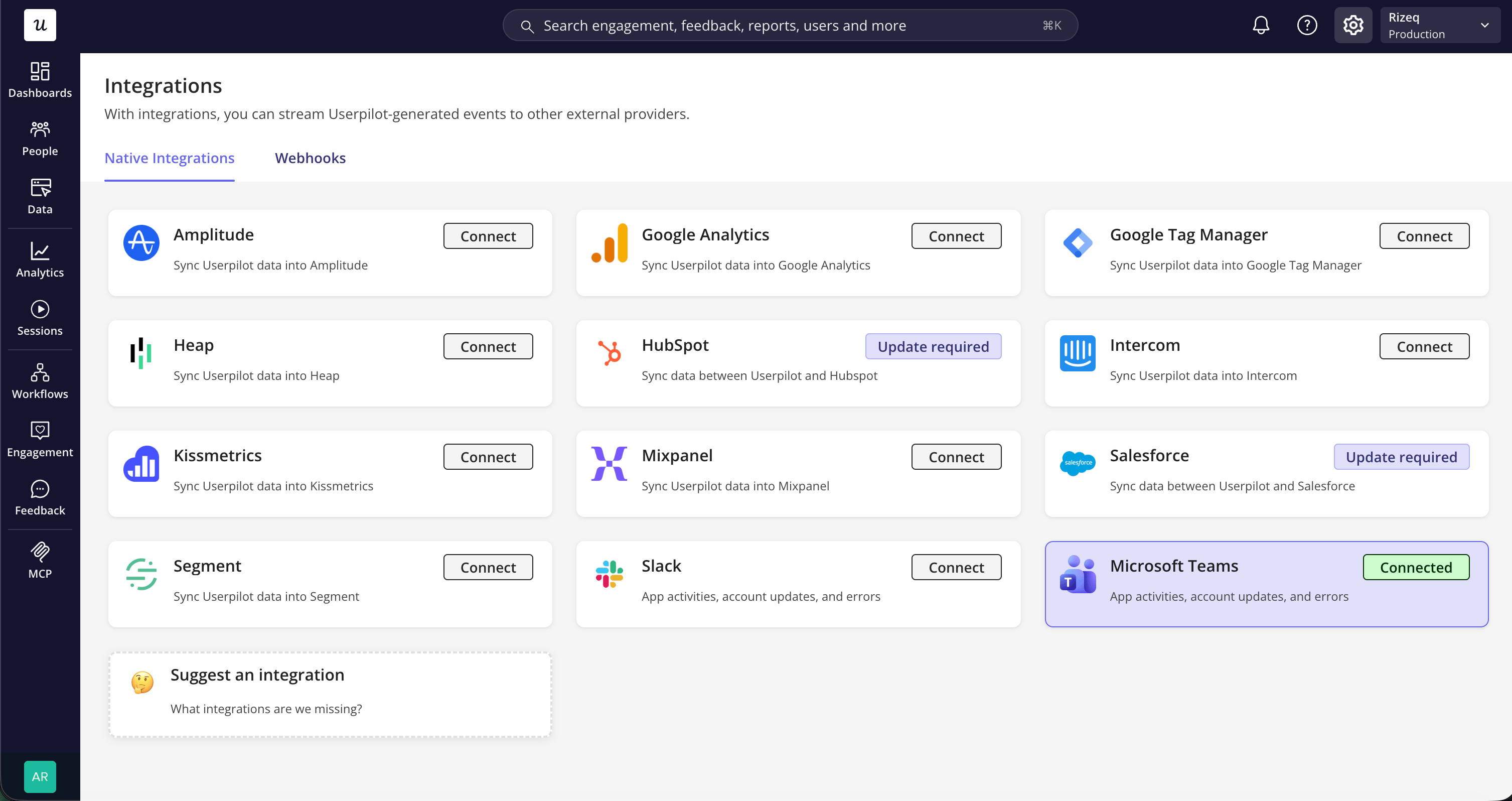
1. **Enable Microsoft Teams integration**
* Go to [**Settings → Integrations → Microsoft Teams**](https://run.userpilot.io/integrations/native-integration)
in your Userpilot workspace.
* Select **Connect**.
### Use cases
Here's what you can do with the Microsoft Teams integration:
#### 1. Stay informed
Get notifications in Teams channels or as direct messages when:
* Users complete flows, checklists, or surveys.
* NPS responses or feedback are submitted.
* Users engage with in-app experiences or visit key pages.
#### 2. Collaborate effortlessly
Keep everyone aligned by:
* Receiving notifications when teammates share reports, dashboards, sessions, or
publish new content.
* Allowing Product, Success, Support, and Marketing teams to act on insights
immediately.
#### 3. Monitor product health
* Get notified when issues occur in your in-app content, such as broken flows or
delivery errors.
* Troubleshoot and optimize faster with visibility in Teams.
## Install the Beta app
Follow the instructions below to download the Microsoft Teams app.
A Teams app package (.zip) to upload to your Microsoft Teams organization.
Only a Microsoft Teams admin can upload a custom app. If you are not an
admin, send the file to your Teams admin.
1. Download the app package above. Do not unzip it.
2. Open the [Microsoft Teams admin center](https://admin.teams.microsoft.com)
and go to **Teams apps → Manage apps**.
3. Select **Upload new app**, then **Upload**, and choose the downloaded file.
4. Make sure the Userpilot app is allowed for your users.
After the Userpilot app is published in the Teams Store, you can remove the
Beta app and install it from the Store instead.
## How to integrate Userpilot with Microsoft Teams
1. **Enable Microsoft Teams integration**
* Go to [**Settings → Integrations → Microsoft Teams**](https://run.userpilot.io/integrations/native-integration)
in your Userpilot workspace.
* Select **Connect**.
 2. **Authorize Userpilot in Microsoft Teams**
* Sign in with your Microsoft account and approve the connection.
3. **Grant admin consent in Microsoft Entra**
* Userpilot needs your Microsoft admin's approval to list your teams and
channels. Without it, the team picker in Userpilot stays empty.
* A Microsoft Entra admin opens the [Microsoft Entra admin center](https://entra.microsoft.com)
and goes to **Enterprise applications → Userpilot → Permissions**.
* Select **Grant admin consent**, review the permissions, and select **Accept**.
* You only need to do this once for your organization.
The Userpilot app appears in **Enterprise applications** after the first
person in your organization completes step 2.
4. **Add the Userpilot app to your teams**
* In Microsoft Teams, add the Userpilot app to every team where you want to
receive signals.
5. **Start sending notifications**
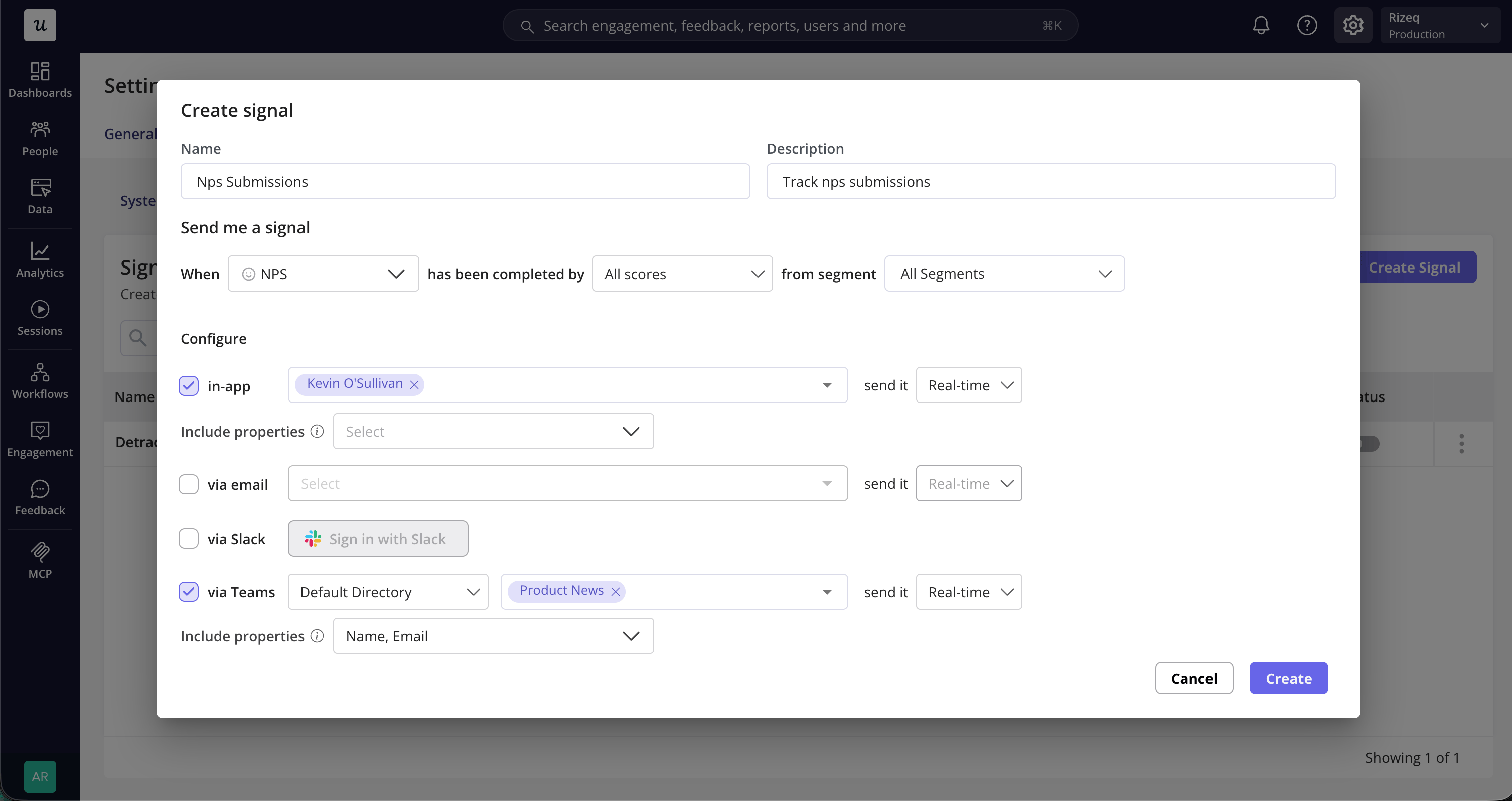
* After connecting, link your Teams account within Userpilot.
* Go to [**Settings → Notifications**](https://run.userpilot.io/settings/notifications).
* Select **Sign in with Microsoft Teams** and complete the Microsoft sign-in.
* You can start receiving [**system notifications**](https://run.userpilot.io/settings/notifications)
and [**Digest updates**](https://run.userpilot.io/settings/notifications/digest)
in Teams.
2. **Authorize Userpilot in Microsoft Teams**
* Sign in with your Microsoft account and approve the connection.
3. **Grant admin consent in Microsoft Entra**
* Userpilot needs your Microsoft admin's approval to list your teams and
channels. Without it, the team picker in Userpilot stays empty.
* A Microsoft Entra admin opens the [Microsoft Entra admin center](https://entra.microsoft.com)
and goes to **Enterprise applications → Userpilot → Permissions**.
* Select **Grant admin consent**, review the permissions, and select **Accept**.
* You only need to do this once for your organization.
The Userpilot app appears in **Enterprise applications** after the first
person in your organization completes step 2.
4. **Add the Userpilot app to your teams**
* In Microsoft Teams, add the Userpilot app to every team where you want to
receive signals.
5. **Start sending notifications**
* After connecting, link your Teams account within Userpilot.
* Go to [**Settings → Notifications**](https://run.userpilot.io/settings/notifications).
* Select **Sign in with Microsoft Teams** and complete the Microsoft sign-in.
* You can start receiving [**system notifications**](https://run.userpilot.io/settings/notifications)
and [**Digest updates**](https://run.userpilot.io/settings/notifications/digest)
in Teams.
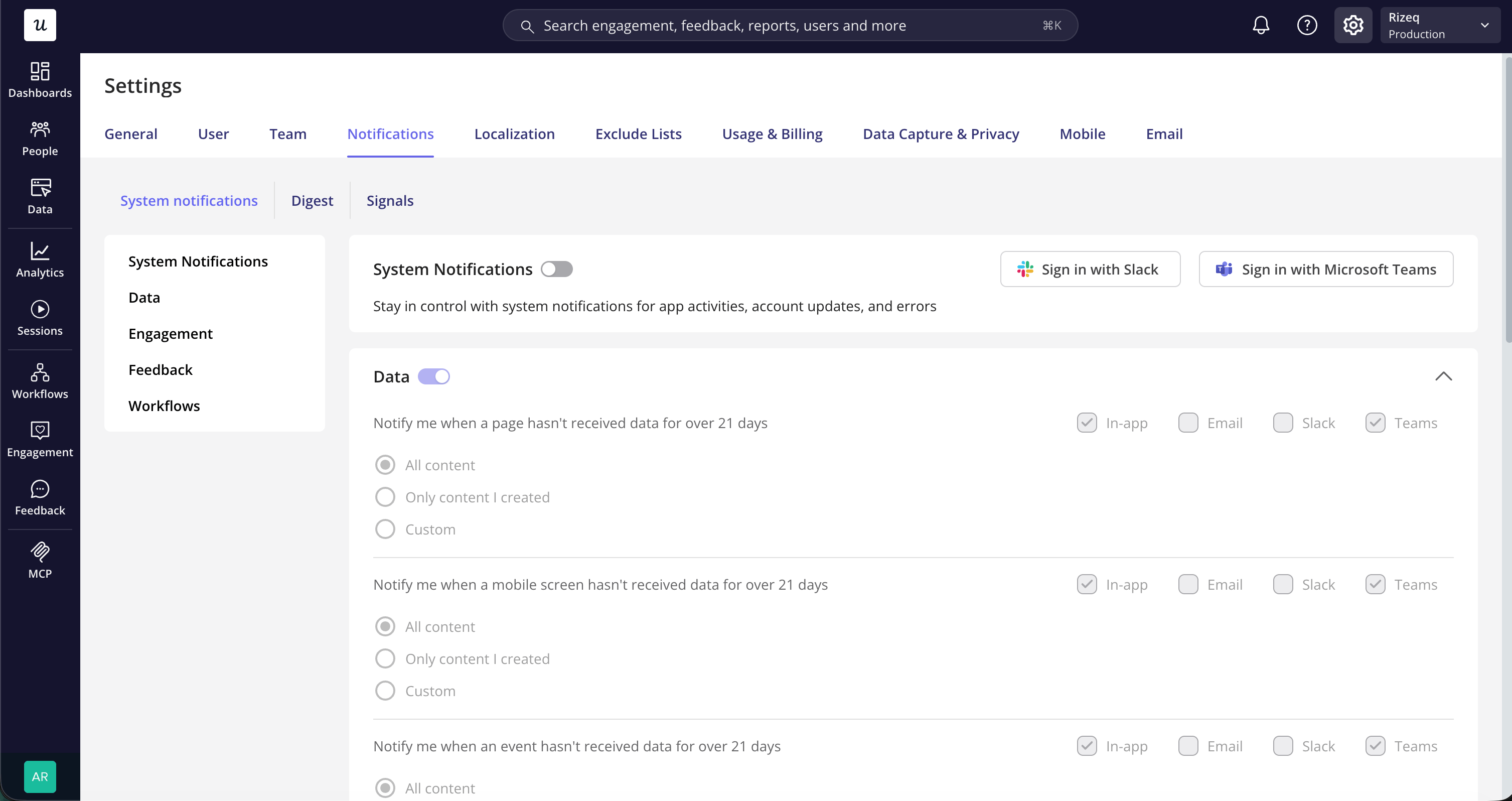 6. **Configure [Signal](https://run.userpilot.io/settings/notifications/signals) notifications**
* Create or edit a signal and select **via Teams**.
* Choose the team, channels, schedule, and user properties to include.
* Pick a team where you added the Userpilot app in step 4, so it can post to
its channels.
6. **Configure [Signal](https://run.userpilot.io/settings/notifications/signals) notifications**
* Create or edit a signal and select **via Teams**.
* Choose the team, channels, schedule, and user properties to include.
* Pick a team where you added the Userpilot app in step 4, so it can post to
its channels.
 [For any questions or concerns please reach out to **support@userpilot.com**](mailto:support@userpilot.com)
This documentation is built and hosted on [Mintlify](https://mintlify.com), a developer documentation platform.
[For any questions or concerns please reach out to **support@userpilot.com**](mailto:support@userpilot.com)
This documentation is built and hosted on [Mintlify](https://mintlify.com), a developer documentation platform.