> ## Documentation Index
> Fetch the complete documentation index at: https://docs.userpilot.com/llms.txt
> Use this file to discover all available pages before exploring further.
# Resource Center Setup
> On-demand support, guidance, and updates built into your app. Contextual help and product news, all in one place.
## Overview
The Userpilot Resource Center is a feature designed to provide your end-users with on-demand answers and contextual guidance directly within your application. This tool enhances user experience by offering in-app tutorials, seamless access to product news, and the ability for users to replay previously viewed Userpilot content. Additionally, the Resource Center's search functionality allows users to quickly locate relevant information from your knowledge base.
This feature is only available for **Growth** and **Enterprise** plans.
## Create your Resource Center
To begin, navigate to the [Resource Center page](https://run.userpilot.io/resource-center) in your Userpilot dashboard and click "Edit Resource Center".
 ## Home
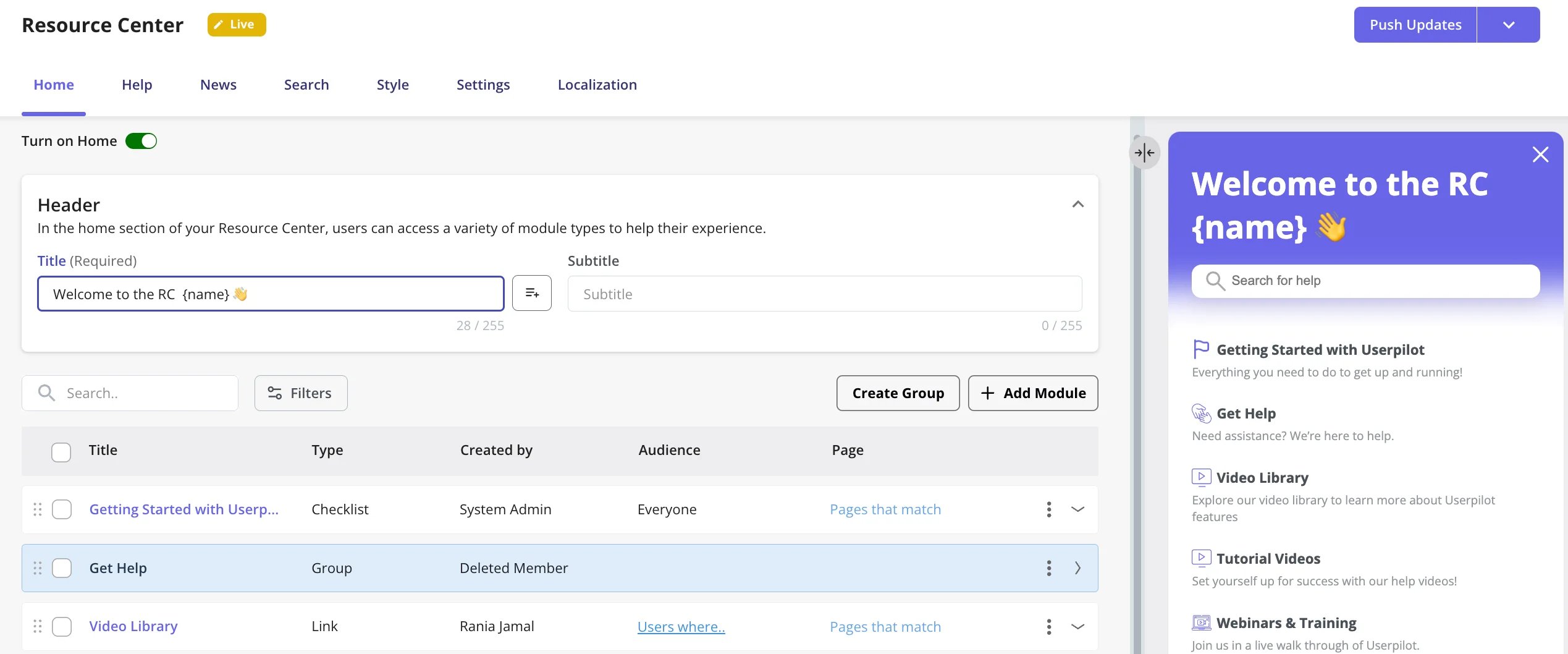
The home tab is where the content of the widget is created as well, including a header title and a description subtitle. The “Turn on Home” option allows you to toggle this tab on or off. In the header section, you can select the header and subtitle for your resource center widget. Additionally, you can utilize personalization, enabling you to choose a property where the corresponding value will display in live mode.
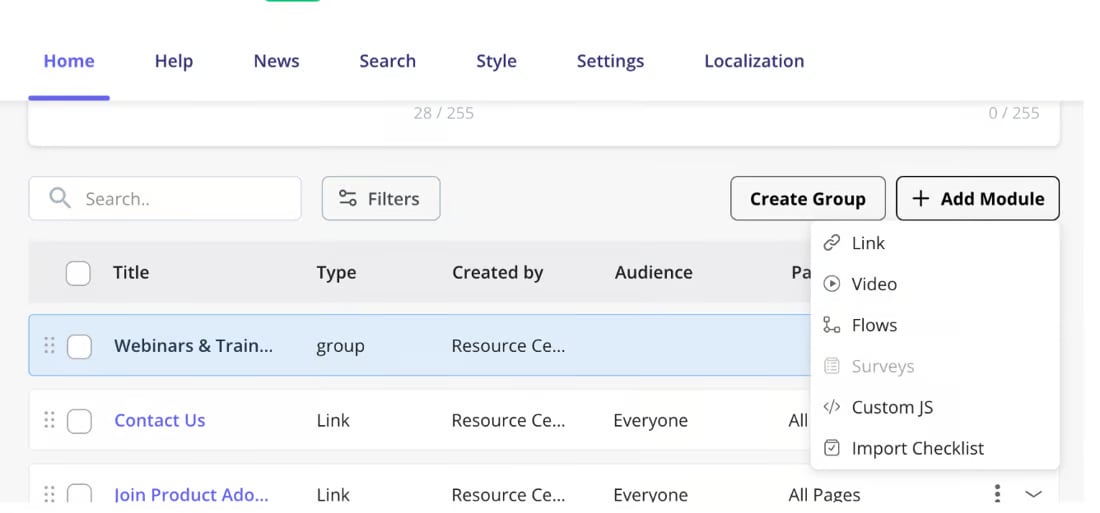
1. Add a Module: Clicking the “Add Module” button will prompt a dropdown menu to appear, offering the following options.
* Flows: Add a flow that consists of a single step or a sequence of steps.
* Surveys: Trigger a survey to gather the users’ feedback
* Import Checklist: Add a Checklist pattern that consists of a set of tasks
Send your end-users to external URLs such as your knowledge base
Embed a video to provide visualized assistance
Add your own customized JS function that can be used to access custom content such as triggering a chat widget.
## Home
The home tab is where the content of the widget is created as well, including a header title and a description subtitle. The “Turn on Home” option allows you to toggle this tab on or off. In the header section, you can select the header and subtitle for your resource center widget. Additionally, you can utilize personalization, enabling you to choose a property where the corresponding value will display in live mode.
1. Add a Module: Clicking the “Add Module” button will prompt a dropdown menu to appear, offering the following options.
* Flows: Add a flow that consists of a single step or a sequence of steps.
* Surveys: Trigger a survey to gather the users’ feedback
* Import Checklist: Add a Checklist pattern that consists of a set of tasks
Send your end-users to external URLs such as your knowledge base
Embed a video to provide visualized assistance
Add your own customized JS function that can be used to access custom content such as triggering a chat widget.
 2. Set up the Targeting
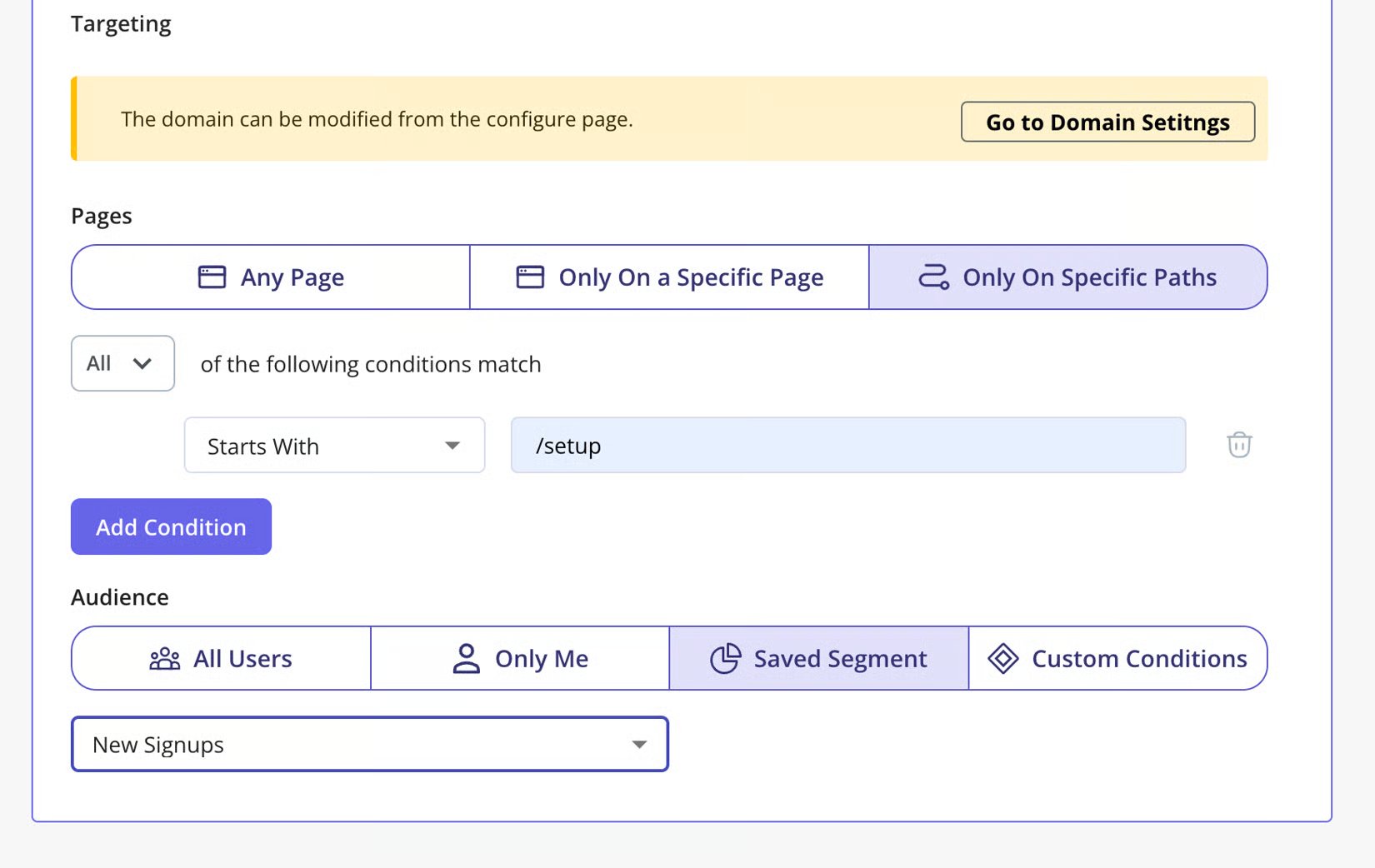
Targeting in the Resource Center is set up on a module level, so you can specify which content you’d like to appear for specific users or on specific pages.
2. Set up the Targeting
Targeting in the Resource Center is set up on a module level, so you can specify which content you’d like to appear for specific users or on specific pages.
 3. Create a Group
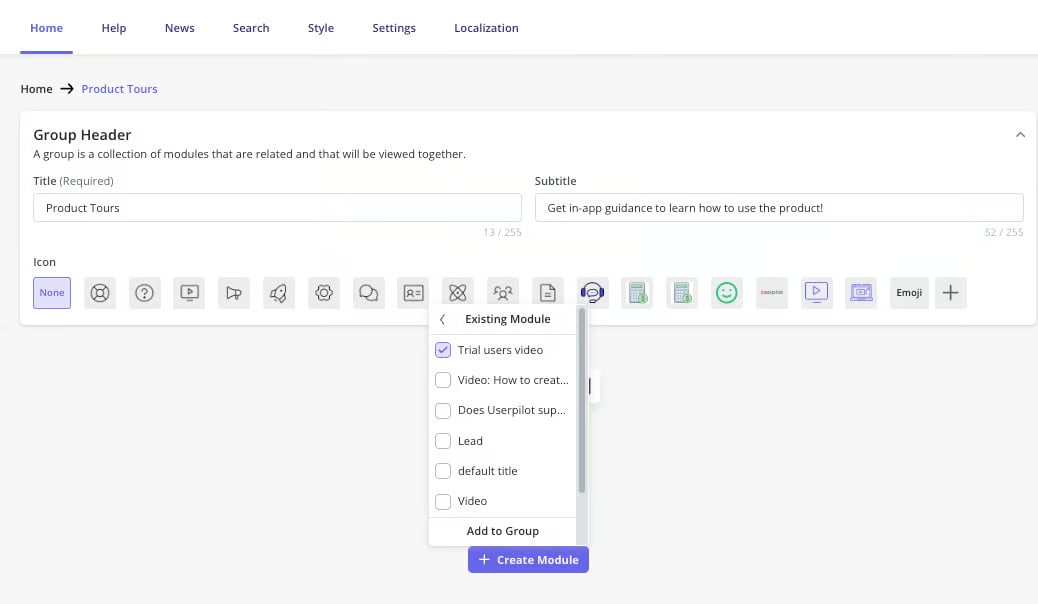
You can group different modules to be listed in one section simply by clicking on the “Create Group” option
3. Create a Group
You can group different modules to be listed in one section simply by clicking on the “Create Group” option
 ***
## Help
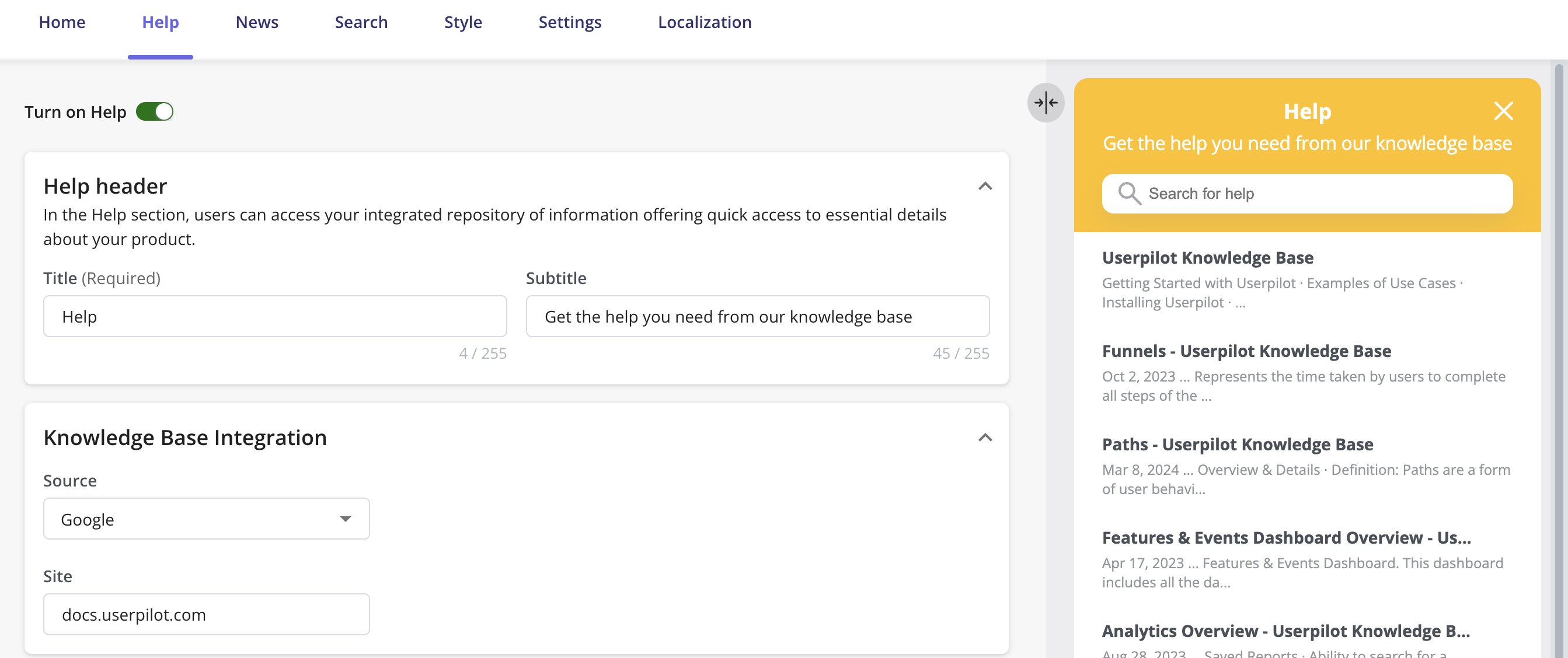
The Help section is mainly responsible for connecting your Knowledge Base; here you can select the Source of your Knowledge Base Integration and connect it accordingly. In addition to specifying the needed page settings for where you would like the Help tab to show.
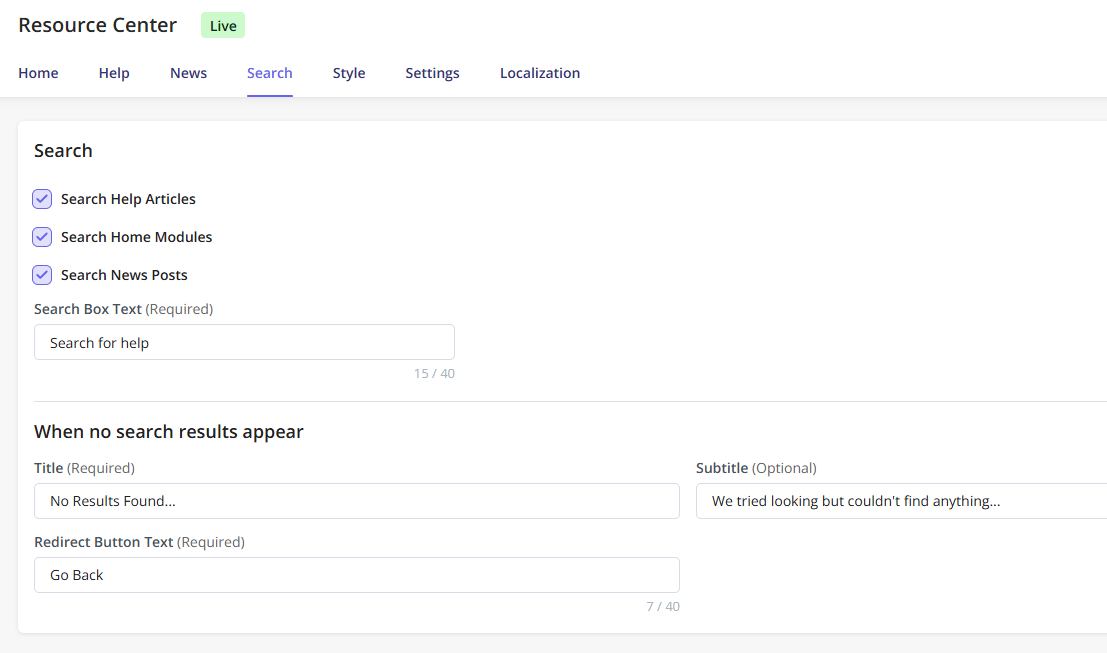
The Resource Center has a search function that includes searching both the Resource Center content as well as any external knowledge base. You can adjust the search functionality from the [Search tab](https://run.userpilot.io/resource-center/edit/search).
You can currently only specify a domain to retrieve documents from; adding a specific page or URL is not yet supported. The search feature supports returning results from password-secured knowledge bases.
Userpilot’s Help/Search functionality is available with the following search engine providers:
* Zendesk
* Freshdesk
* Freshservice
* Salesforce
* Intercom
* SharePoint
* Google
* Document360
* HubSpot
* Zoho Desk
### **How it works**
After going to the [Help](https://run.userpilot.io/resource-center/edit/help) tab, choose your desired source to connect to it; sources might differ in the way they are connected. You can also enable the search results to include help articles.
***
## Help
The Help section is mainly responsible for connecting your Knowledge Base; here you can select the Source of your Knowledge Base Integration and connect it accordingly. In addition to specifying the needed page settings for where you would like the Help tab to show.
The Resource Center has a search function that includes searching both the Resource Center content as well as any external knowledge base. You can adjust the search functionality from the [Search tab](https://run.userpilot.io/resource-center/edit/search).
You can currently only specify a domain to retrieve documents from; adding a specific page or URL is not yet supported. The search feature supports returning results from password-secured knowledge bases.
Userpilot’s Help/Search functionality is available with the following search engine providers:
* Zendesk
* Freshdesk
* Freshservice
* Salesforce
* Intercom
* SharePoint
* Google
* Document360
* HubSpot
* Zoho Desk
### **How it works**
After going to the [Help](https://run.userpilot.io/resource-center/edit/help) tab, choose your desired source to connect to it; sources might differ in the way they are connected. You can also enable the search results to include help articles.
 Not all knowledge base articles will open inline.
* Salesforce, HubSpot, Freshdesk, Intercom, and Document360 articles will open inline.
* Google, Zendesk, Zoho Desk, Freshservice, and SharePoint articles will open in a new tab.
#### Notes:
If your web app uses a Content Security Policy (CSP) that prevents search results from being returned, you will need to whitelist the domain [**https://playground.userpilot.io**](https://playground.userpilot.io).
Search engines optimize the performed searches based on factors such as the users’ geographical location. This might lead to different results than the ones returned to Userpilot and displayed in the Resource Center.
If you’re using the Google search engine, you’ll have to make sure that your site is Google-indexed. To check if your site has been indexed by Google, enter the URL of your domain with `site:` before it - i.e. `site:docs.userpilot.com`.
For the Salesforce articles to display, they would need to support the following keys:
* Title field: should be: `Title`
* Body field: should be either `Body` or `Article body`
* Description field: should be `Summary`
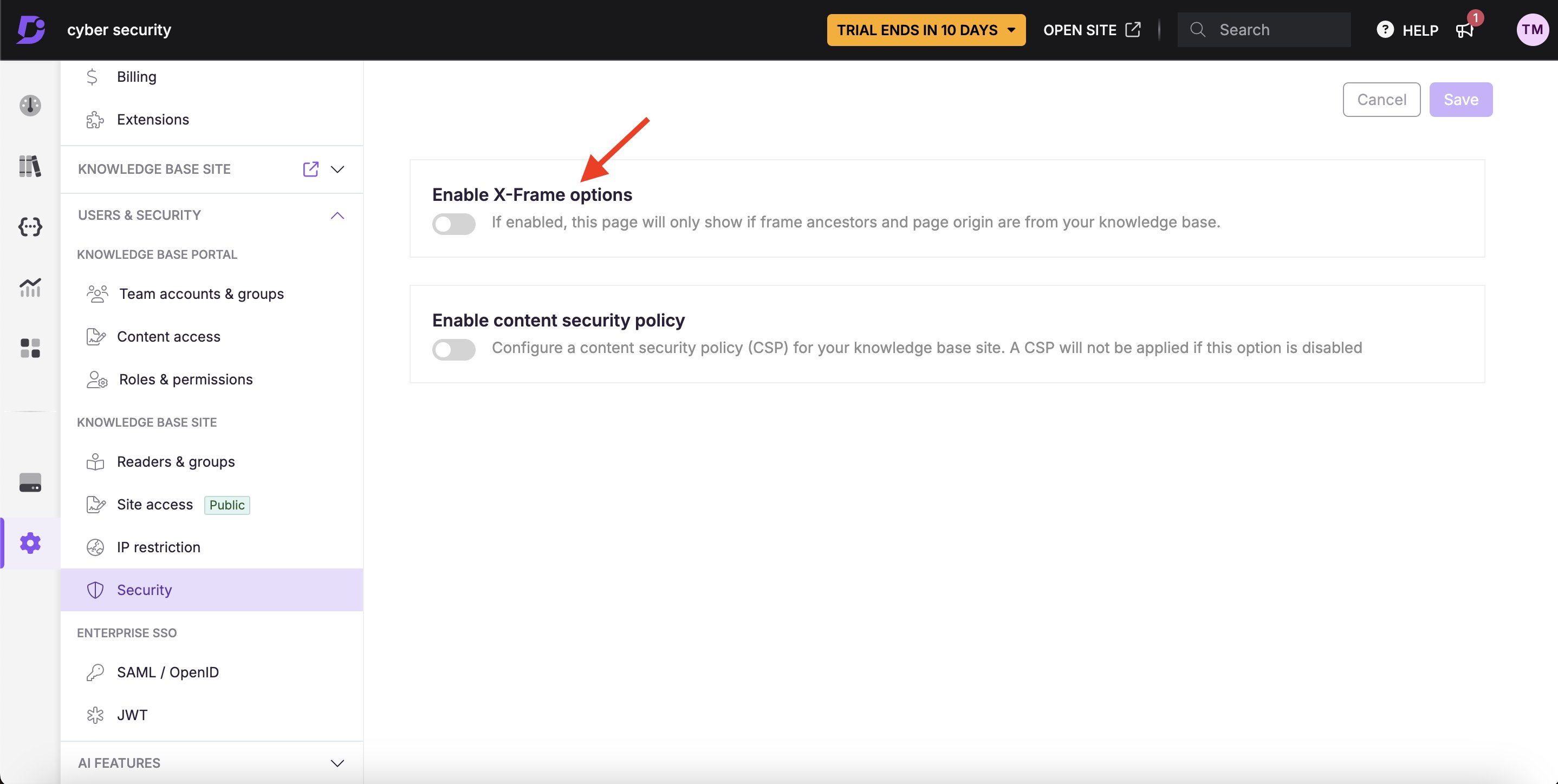
To retrieve your articles without issues from Document360 into the Userpilot Resource Center, ensure that the X-Frame options toggle under the Security settings is turned off.
Not all knowledge base articles will open inline.
* Salesforce, HubSpot, Freshdesk, Intercom, and Document360 articles will open inline.
* Google, Zendesk, Zoho Desk, Freshservice, and SharePoint articles will open in a new tab.
#### Notes:
If your web app uses a Content Security Policy (CSP) that prevents search results from being returned, you will need to whitelist the domain [**https://playground.userpilot.io**](https://playground.userpilot.io).
Search engines optimize the performed searches based on factors such as the users’ geographical location. This might lead to different results than the ones returned to Userpilot and displayed in the Resource Center.
If you’re using the Google search engine, you’ll have to make sure that your site is Google-indexed. To check if your site has been indexed by Google, enter the URL of your domain with `site:` before it - i.e. `site:docs.userpilot.com`.
For the Salesforce articles to display, they would need to support the following keys:
* Title field: should be: `Title`
* Body field: should be either `Body` or `Article body`
* Description field: should be `Summary`
To retrieve your articles without issues from Document360 into the Userpilot Resource Center, ensure that the X-Frame options toggle under the Security settings is turned off.
 ***
## News
The News tab will help you create and share posts with your end users, so they can stay updated on new releases and receive important information. Articles include text, images, links, personalization, and videos.
***
## News
The News tab will help you create and share posts with your end users, so they can stay updated on new releases and receive important information. Articles include text, images, links, personalization, and videos.
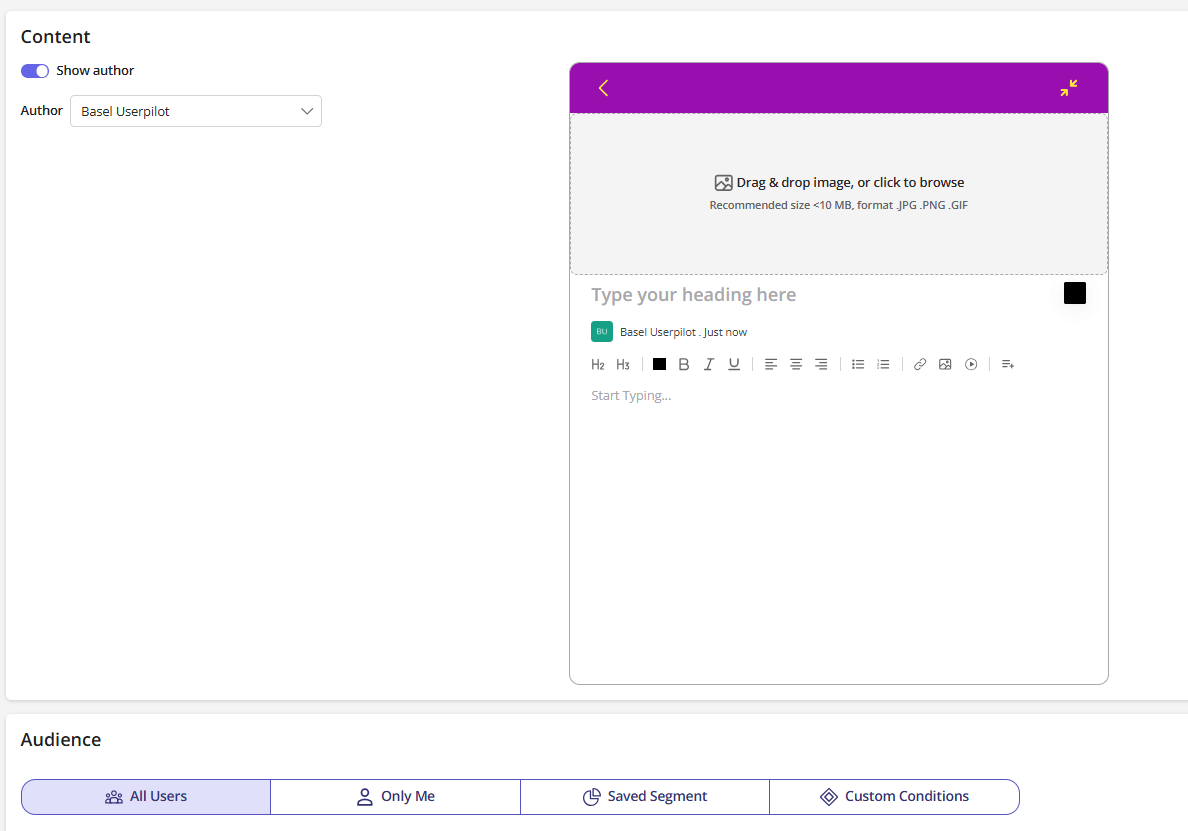
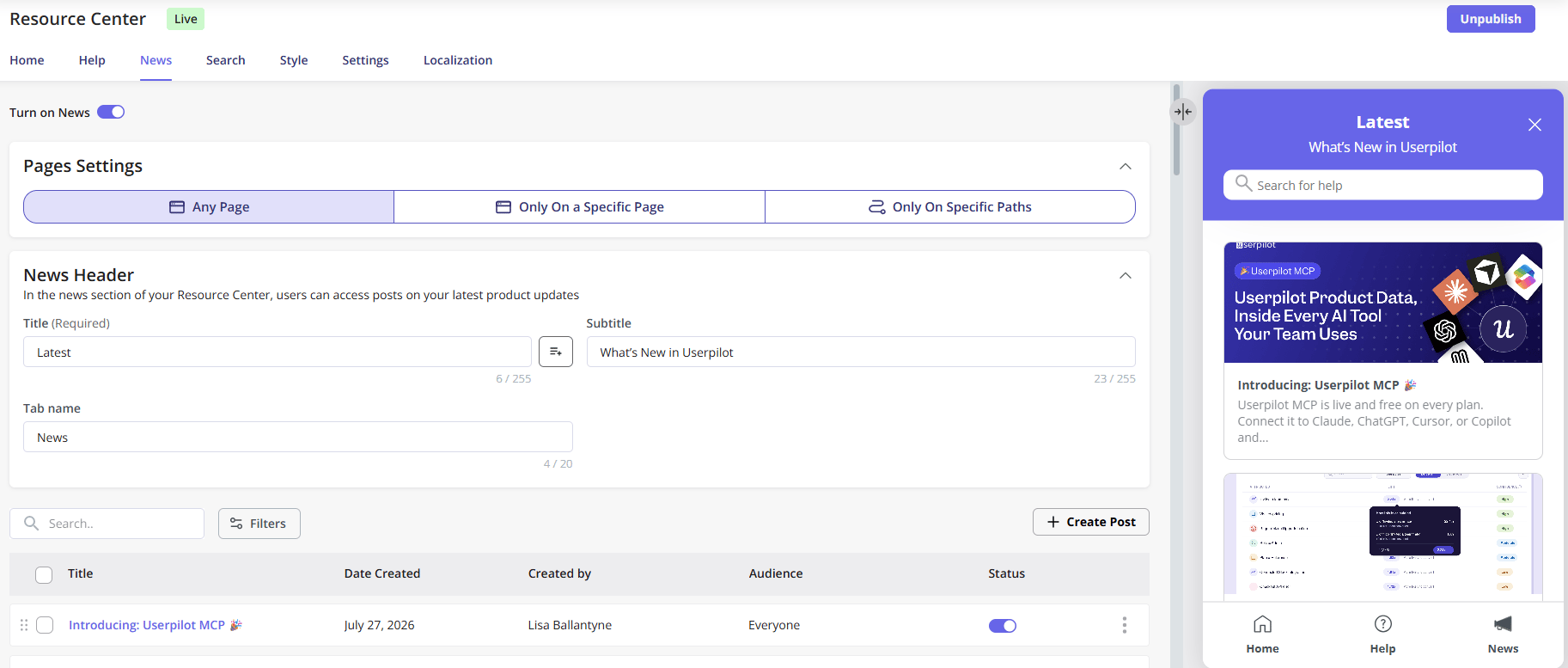 After adding a header for the News tab, you’ll encounter a “Create Post” button. Clicking this button redirects you to compose the post and configure its audience settings.
Each post has its own audience settings, allowing you to customize triggering for specific users.
The “Status” feature next to each post enables you to either publish the article for users or keep it in draft mode.
After adding a header for the News tab, you’ll encounter a “Create Post” button. Clicking this button redirects you to compose the post and configure its audience settings.
Each post has its own audience settings, allowing you to customize triggering for specific users.
The “Status” feature next to each post enables you to either publish the article for users or keep it in draft mode.
 Font can be changed under the [Style](https://run.userpilot.io/resource-center/edit/style) tab.
## **FAQs**
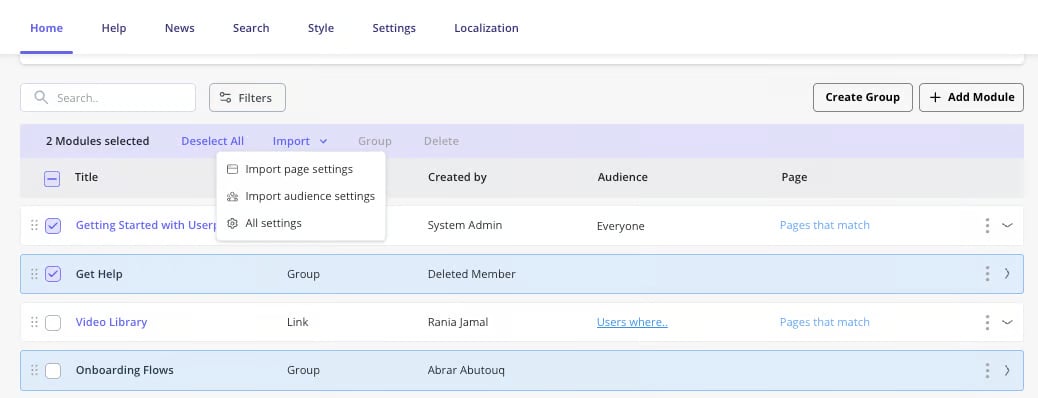
Absolutely, you can multi-select modules, then click on “Import page/audience settings”. Then select which module you’d like to import the settings from, and it will be applied to the selected ones.
Font can be changed under the [Style](https://run.userpilot.io/resource-center/edit/style) tab.
## **FAQs**
Absolutely, you can multi-select modules, then click on “Import page/audience settings”. Then select which module you’d like to import the settings from, and it will be applied to the selected ones.
 [For any questions or concerns please reach out to **support@userpilot.com**](mailto:support@userpilot.com)