> ## Documentation Index
> Fetch the complete documentation index at: https://docs.userpilot.com/llms.txt
> Use this file to discover all available pages before exploring further.
# Failure Signals
> See the moments where your agent didn't do what the user needed, grouped so you can tell how often they happen and where.
## Overview
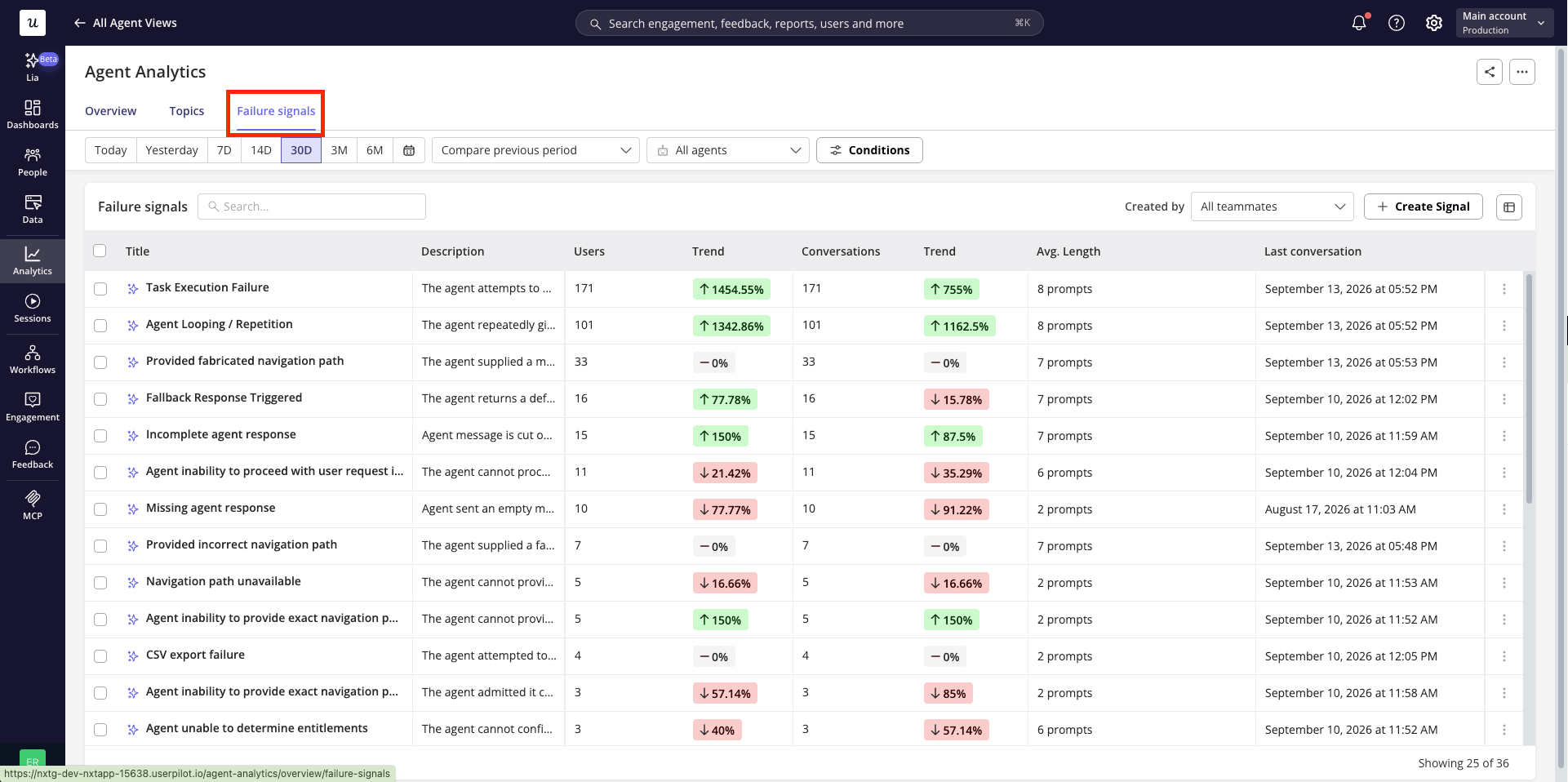
Failure signals surface the moments where your agent fell short — a fallback answer, a failed action, an escalation to a human, or the agent contradicting itself. Instead of reading every transcript to find these moments, Agent Analytics detects and groups them automatically, and lets you define your own signals for anything specific to your product.
## Use Cases
* **Find where the agent is falling short** without manually reviewing transcripts.
* **Prioritize fixes** by seeing which failure types affect the most users or conversations.
* **Track custom failure patterns** specific to your product that default detection doesn't cover.
* **Investigate a specific failure** by drilling straight into the conversations behind it.
## Getting Started
To get started, simply navigate to the [Failure signals](https://run.userpilot.io/analytics/agents/failure-signals) tab within Agent Analytics, you'll see every failure pattern detected across your agent's conversations, with usage stats you can sort and filter to find where the agent needs the most attention.
 ## How failure signals work
Userpilot's AI automatically detects a set of common failure patterns in agent conversations, including:
| Signal | What it means | Example |
| - | - | - |
| Fallback response triggered | The agent gave a default "I can't help with that" style answer. | "I'm not sure how to help with that." |
| Task execution failure | The agent tried to take an action (an API call, a workflow, a tool) and it failed. | User asks the agent to export data; the export fails. |
| Escalation / human handoff | The conversation was handed off from the agent to a human. | "Let me connect you to a support specialist." |
| Contradictory agent responses | The agent gave conflicting answers within the same conversation. | "You can export from Settings" — then later, "Exporting isn't supported." |
| Agent looping / repetition | The agent repeats itself or asks the same thing without moving the conversation forward. | Repeatedly asking "Can you clarify your request?" |
You can also **create your own custom failure signals** for behaviors specific to your product that the default detection doesn't cover.
## Creating a signal
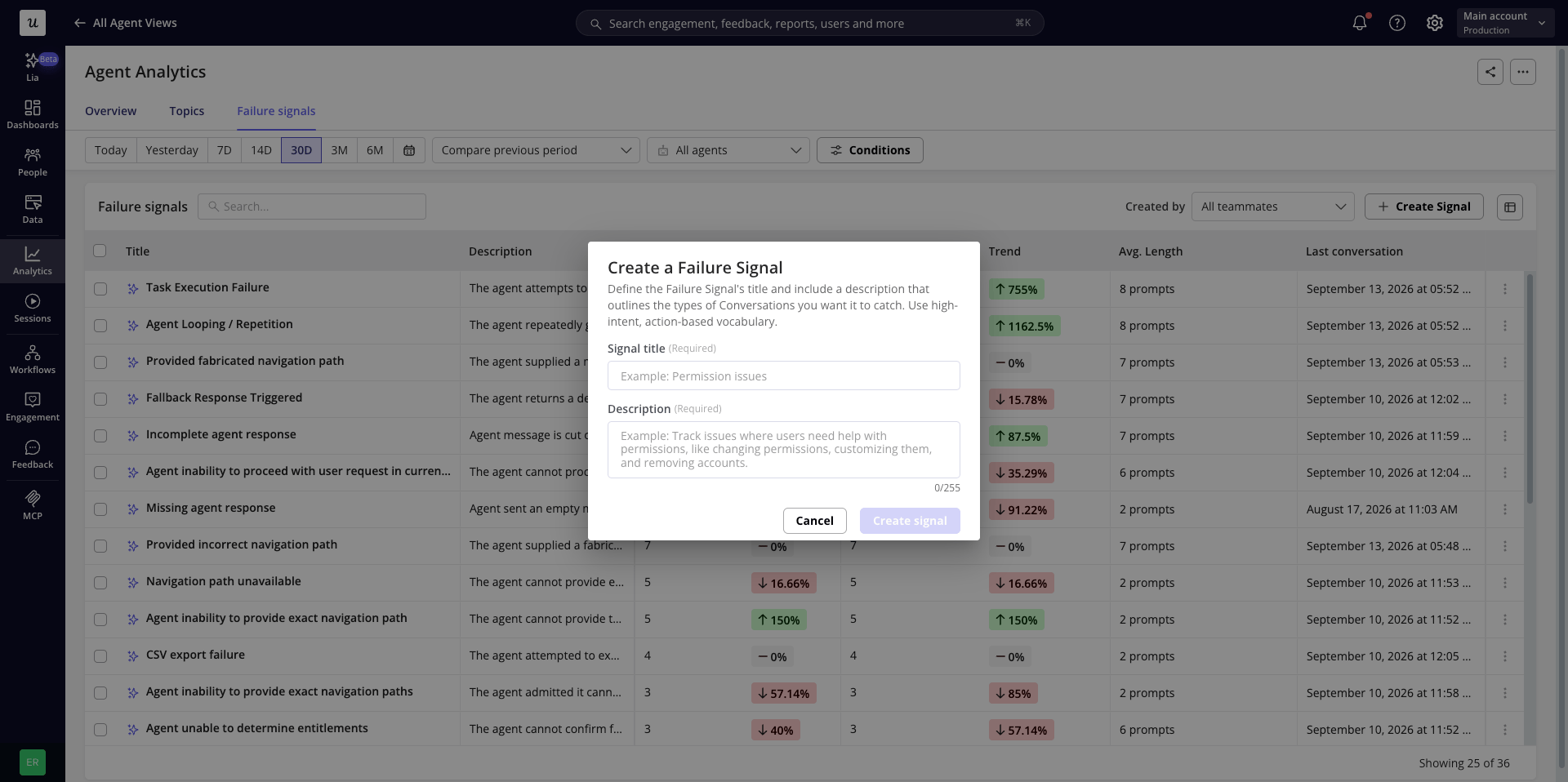
1. Click **Create signal**.
2. Enter a **title** and **description** — both required.
3. Save. Conversations matching your definition will start being grouped under it.
## How failure signals work
Userpilot's AI automatically detects a set of common failure patterns in agent conversations, including:
| Signal | What it means | Example |
| - | - | - |
| Fallback response triggered | The agent gave a default "I can't help with that" style answer. | "I'm not sure how to help with that." |
| Task execution failure | The agent tried to take an action (an API call, a workflow, a tool) and it failed. | User asks the agent to export data; the export fails. |
| Escalation / human handoff | The conversation was handed off from the agent to a human. | "Let me connect you to a support specialist." |
| Contradictory agent responses | The agent gave conflicting answers within the same conversation. | "You can export from Settings" — then later, "Exporting isn't supported." |
| Agent looping / repetition | The agent repeats itself or asks the same thing without moving the conversation forward. | Repeatedly asking "Can you clarify your request?" |
You can also **create your own custom failure signals** for behaviors specific to your product that the default detection doesn't cover.
## Creating a signal
1. Click **Create signal**.
2. Enter a **title** and **description** — both required.
3. Save. Conversations matching your definition will start being grouped under it.
 ## Editing, pinning, hiding, and deleting
From a signal's **more actions** menu:
* **Edit signal** – update the title or description. Editing switches the signal from AI-identified to manually created.
* **Pin / Unpin** – pinned signals always show at the top of the table, sorted among themselves, and remain visible even with zero data for the selected period.
* **Hide** – removes the signal, and every conversation grouped under it, from all views and analytics. You'll see a confirmation first. Restore it later from **Hidden failure signals** in the Overview's more actions menu.
* **Delete** – permanently removes the signal. This option is **only available for signals you created manually** — AI-identified signals can be hidden, but not deleted, since Userpilot may re-detect the same pattern.
## Viewing conversations for a signal
Click into any failure signal to open a slideout listing every conversation where it was detected, sorted by date (most recent first). You can search across all columns, expand to full screen, or switch to **View replays** where available.
* Search across all columns.
* Expand the slideout to a full-screen view.
* Switch to **View replays**, if session replays are available for these conversations.
Click into any conversation row to open the full Conversation transcript view.
## FAQs
A frustration signal reflects how the user is behaving (e.g. angry language, all-caps, repeated rephrasing). A failure signal reflects what the agent did (e.g. a fallback response, a failed action, an escalation). A conversation can have either, both, or neither.
This documentation is built and hosted on [Mintlify](https://mintlify.com), a developer documentation platform.
## Editing, pinning, hiding, and deleting
From a signal's **more actions** menu:
* **Edit signal** – update the title or description. Editing switches the signal from AI-identified to manually created.
* **Pin / Unpin** – pinned signals always show at the top of the table, sorted among themselves, and remain visible even with zero data for the selected period.
* **Hide** – removes the signal, and every conversation grouped under it, from all views and analytics. You'll see a confirmation first. Restore it later from **Hidden failure signals** in the Overview's more actions menu.
* **Delete** – permanently removes the signal. This option is **only available for signals you created manually** — AI-identified signals can be hidden, but not deleted, since Userpilot may re-detect the same pattern.
## Viewing conversations for a signal
Click into any failure signal to open a slideout listing every conversation where it was detected, sorted by date (most recent first). You can search across all columns, expand to full screen, or switch to **View replays** where available.
* Search across all columns.
* Expand the slideout to a full-screen view.
* Switch to **View replays**, if session replays are available for these conversations.
Click into any conversation row to open the full Conversation transcript view.
## FAQs
A frustration signal reflects how the user is behaving (e.g. angry language, all-caps, repeated rephrasing). A failure signal reflects what the agent did (e.g. a fallback response, a failed action, an escalation). A conversation can have either, both, or neither.
This documentation is built and hosted on [Mintlify](https://mintlify.com), a developer documentation platform.